How Accurate Is a DPI Analyzer? Here’s the Real Answer
By DPI Analyzer TeamPublished Updated
You've used a DPI analyzer, you got a number, and now you're wondering, can you actually trust it? That's a fair question. Any measurement tool has limits, and a browser-based tool that relies on you physically moving a mouse across a ruler feels like it has a few obvious ways to go wrong.
The short answer is yes, it can be very accurate, typically within 1 to 2 percent of your true hardware DPI. But that accuracy depends on a few things you control. Skip one of them and your reading can drift by 5 percent or more, which is enough to throw off your aim or your sensitivity conversion.
This post breaks down how the tool actually measures DPI, what can pull that reading off course, and how to get results you can rely on.
How a DPI Analyzer Measures Your Mouse
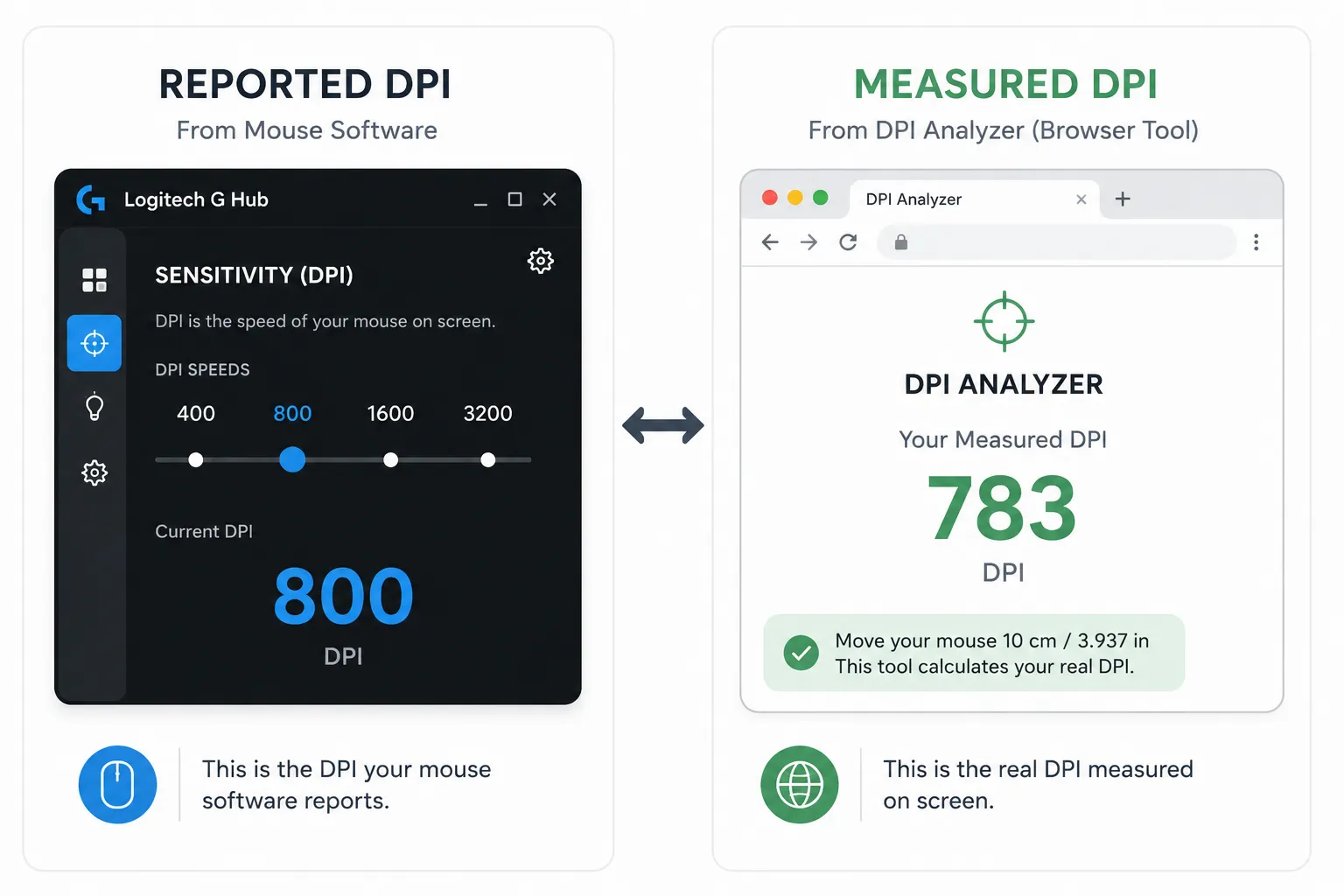
The tool does not read a value from your mouse firmware. It measures physical movement and compares it to cursor displacement.
You set a distance, say 10 centimeters, and move your mouse exactly that far across your desk while holding down inside the measurement area. The tool tracks how many screen pixels the cursor traveled during that movement. It then divides pixels by the physical distance and gives you your DPI.
That's the same principle a calibration lab would use. It's not a firmware lookup or a software guess. It's a real physical test. The math itself is not the source of error; the inputs are.
What Actually Affects the Accuracy of the Reading
Four variables move the needle. Three of them are within your control.
Pointer Acceleration Is the Biggest One
On Windows, 'Enhance Pointer Precision' adjusts how fast your cursor moves based on the speed of your physical movement. The tool gets its data from the operating system, not from the raw sensor. If acceleration is active, the cursor can travel different distances on screen even when you move the same physical distance at different speeds.
This is the single most common reason people get readings they can't repeat. Disable it before you test. Go to Mouse Settings, open Additional Mouse Options, click the Pointer Options tab, and uncheck Enhance Pointer Precision.
Browser Zoom Shifts the Pixel Scale
If your browser is zoomed in or out, even a small amount, the coordinate values the tool reads do not match the actual screen pixel grid. The math breaks because the reference scale is off. Before running the test, confirm your browser zoom is at 100 percent. Press Ctrl+0 to reset it.
How Precisely You Measure Your Distance
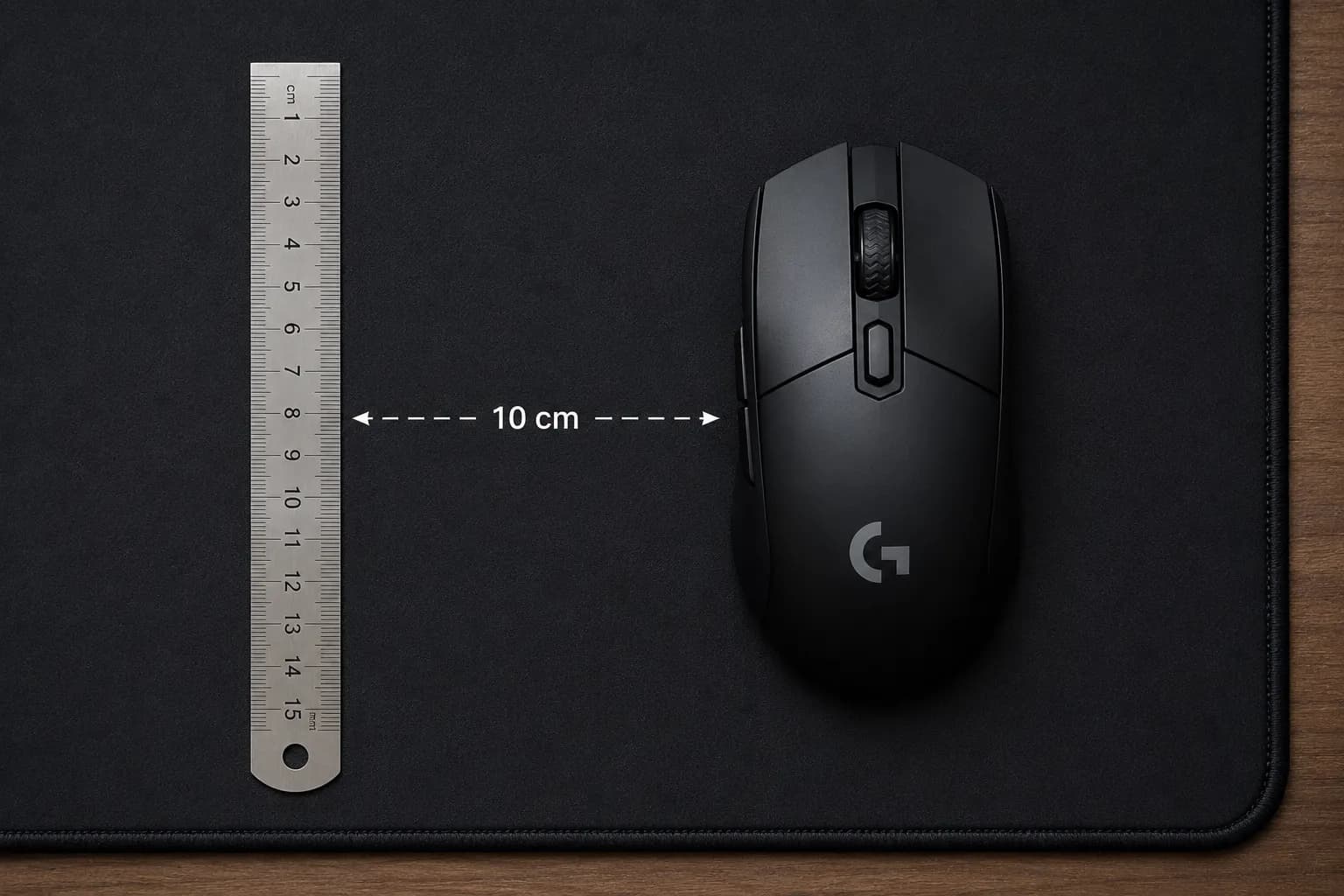
If you tell the tool you moved 10 centimeters, but you actually moved 9.5, the result will be off by 5 percent before the sensor even factors in. Use a physical ruler along the edge of your mouse pad. Keep your movement straight. A longer distance, 15 cm or more, reduces the impact of small measurement errors at the start and end of the stroke.
Your Mouse Sensor Itself Has a Tolerance Range
Even a perfectly run test will not always return the exact advertised DPI. Mouse sensors are manufactured to a tolerance range, and the DPI value printed on the box is a target, not a guarantee. Most gaming mice come within 3 to 5 percent of their rated value. A reading of 785 when targeting 800 is not a bad test; it's a real mouse.
Surface texture also matters. Cloth pads and hard pads interact with optical sensors differently. For consistency, always test on the surface you actually use. If your readings feel inconsistent beyond normal tolerance, it's also worth running our double click test to rule out worn switches or a failing sensor before you blame the DPI number.
How Accurate Is It Compared to Other Methods?
The DPI analyzeris the most accurate method available to everyday users. Here's how it stacks up against the alternatives:
| Method | Typical Accuracy | What It Actually Measures |
|---|---|---|
| Manufacturer software | Configured target only | Firmware value, not sensor output |
| DPI button/sticker | Spec sheet value | Rated DPI, not measured |
| Manual ruler + Paint | 1–3% with care | Physical sensor output (human-limited) |
| Browser DPI analyzer | 1–2% when set up correctly | Physical sensor output (controlled) |
The manual ruler method in Paint and the browser tool use the same underlying principle. For the full walkthrough of that approach, our guide to checking mouse DPI without a DPI analyzer covers it step by step. The tool here produces more consistent results because it controls the coordinate tracking, removes the need to count pixel positions by eye, and prompts you to enter the exact distance you used.
How to Get the Most Accurate Reading
Follow this sequence, and you'll get a result that holds up.
Step 1: Disable Pointer Acceleration
Turn off Enhance Pointer Precision on Windows before you do anything else. On macOS, set tracking speed to a neutral position. If you want fully raw output on a Mac, the free tool LinearMouse removes the system acceleration curve entirely. Our walkthrough for running a DPI analyzer on Mac covers the exact settings menu. This step is non-negotiable.
Step 2: Use a Ruler and a Longer Distance
Set a clear physical start and end point using a ruler placed along the side of your mouse pad. Use a distance of at least 10 centimeters. 15 cm gives you a better margin. Enter the exact measurement you used, not an approximation.
Step 3: Move Smoothly in a Straight Line
A fast jerk at the start or a slow drift at the end introduces error even with acceleration off. Move at a steady, controlled pace from your start point to your end point. Straight line only, diagonal movement stretches the physical distance relative to what you entered.
Step 4: Run the Test at Least Three Times
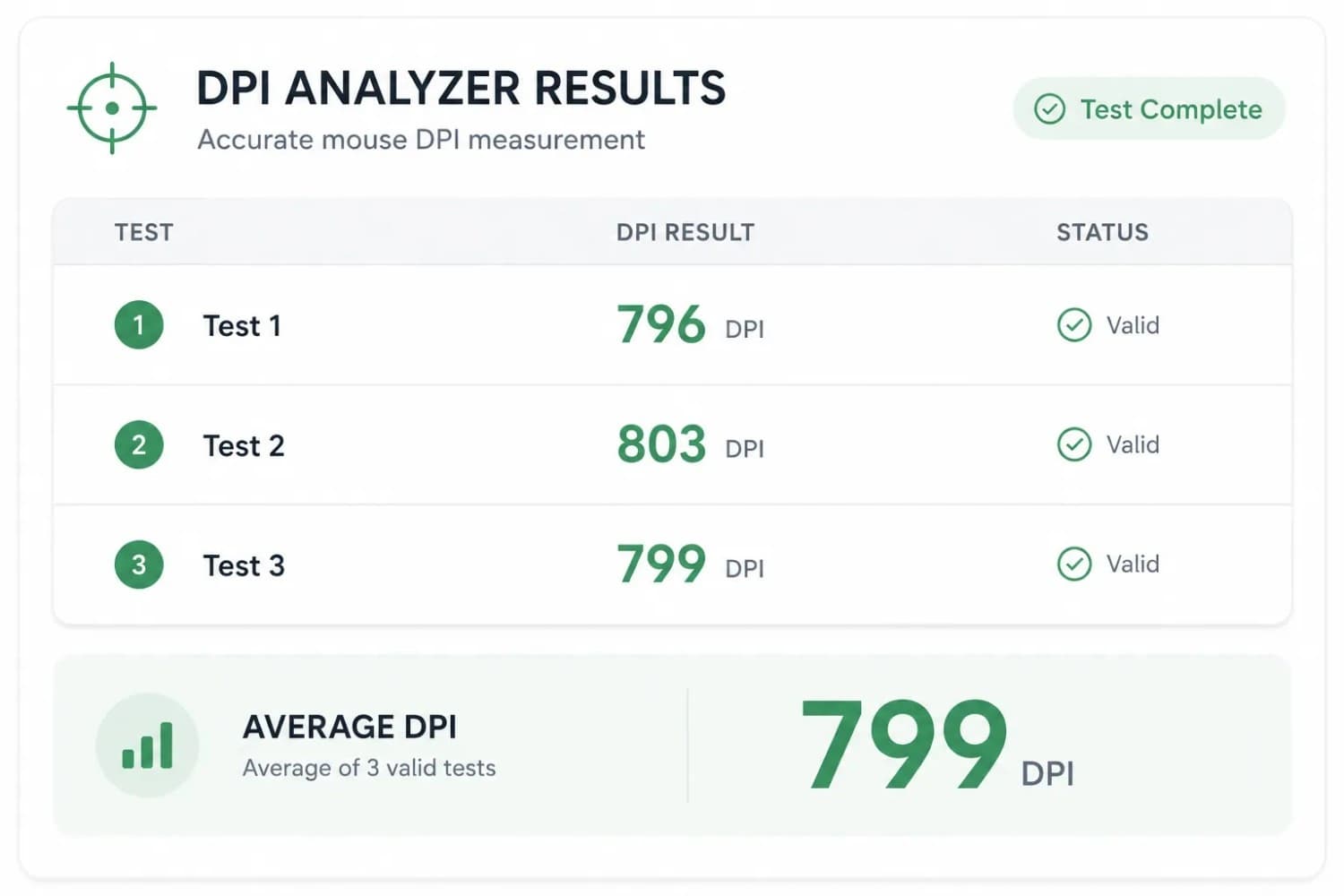
One reading can catch a micro-error at the edge of your stroke. Three consistent readings that land within a few points of each other give you a reliable average. If two results are 798 and one is 754, run it again; something shifted.
What Does a Good Result Look Like?
If your mouse is set to 800 DPI and your test returns 793, that's a clean result. You're within 1 percent of the target, completely normal for a mid-range or gaming mouse. Use 793 as your actual DPI number when calculating eDPI or converting between games.
If your result comes back at 740 when targeting 800, that's nearly 8 percent off. That's not a test error, that's your sensor. You have two options: configure your mouse software to a slightly higher DPI to compensate, or factor the real number into your in-game settings directly.
Results should also be consistent across runs. A spread of more than 10 DPI between tests, with acceleration off, usually means your physical movement is inconsistent, not that the tool is broken.
Does the Difference Actually Matter in Games?
For casual play, a 2 to 3 percent gap between reported and real DPI is barely noticeable. Your aim adapts over time, and a small difference in cursor travel doesn't register consciously.
For competitive players, it matters more. If you're converting your sensitivity from one game to another using a mouse sensitivity converter, a flawed DPI number produces a flawed conversion. The formula works on paper, but the output doesn't feel right because the base figure was wrong from the start. Running the analyzer with a confirmed real DPI number fixes that at the source.
If you're calculating your effective sensitivity for competitive setups, use your confirmed real DPI with our eDPI calculator to get a number that actually reflects what your hardware is doing.
Input response time can also introduce very small measurement variation in repeated tests. For a technical breakdown of how polling rates and input lag factor into measurement accuracy at the hardware level, Blur Busters' input latency breakdown covers the underlying principles in detail.
Input response time can also introduce very small measurement variation in repeated tests. For a technical breakdown of how polling rates and input latency interact with sensor output, see Blur Busters' input latency breakdown.
Common Misconceptions About DPI Analyzer Accuracy
'My Mouse Software Already Shows My DPI'
Mouse software shows the configured target, not what the sensor outputs. It's the same as a car's speedometer showing a number that's 5 percent higher than the speed measured by a radar gun. Firmware targets and real physical output are not always the same thing, no matter which brand's software you use to change your DPI in mouse software.
'A Higher-End Mouse Doesn't Need Testing'
Premium sensors are more consistent, but they still operate within a tolerance range. A flagship gaming mouse can still come in 2 to 4 percent off its stated value. At high DPI settings, even a small percentage difference means a meaningful gap in cursor travel distance.
'The Tool Must Be Wrong Because My Readings Vary'
Variation between tests almost always points back to one of the four factors covered above: acceleration, zoom, physical distance, or inconsistent movement speed. The tool itself is consistent. If your readings vary, run through the setup checklist before assuming the tool is at fault.
Conclusion
A browser DPI analyzer is genuinely accurate, within 1 to 2 percent when used correctly. The tool does not introduce the error. Your OS acceleration settings, browser zoom, physical measurement, and movement technique do.
Get those four things right, and you'll walk away with a real DPI reading that reflects what your sensor is actually doing, not what the box says. For most players, that number is close to the advertised value. For some, it's meaningfully different, and knowing that is exactly why the test is worth doing.
Once you know your real DPI, you can also learn about how DPI affects your aimand build a setup that's calibrated from the ground up.
Related Tools and Guides
- DPI AnalyzerMeasure the DPI your mouse sensor actually delivers, using nothing but a ruler and your browser.
- DPI Analyzer on MacMeasure your real mouse DPI on macOS in any browser, and tame Mac's acceleration curve for an accurate, repeatable reading.
- How to Check Mouse DPI Without a DPI AnalyzerUse manufacturer software, Windows settings, or a quick ruler method to find your exact sensitivity — no analyzer required.
- Mouse Double Click TestFind out in seconds whether a worn switch is turning your single clicks into doubles.
Measure your real DPI now
Open the DPI AnalyzerFrequently Asked Questions
When pointer acceleration is disabled, and you use a ruler for your physical distance, a browser DPI analyzer is accurate to within 1 to 2 percent of your true DPI. That accuracy drops if acceleration is on or your browser zoom is not at 100 percent.
Mouse software shows the firmware target, the value your mouse is trying to achieve. The DPI analyzer measures physical sensor output. A small difference between the two is normal. A gap larger than 8 to 10 percent is worth investigating.
Yes, but not dramatically. Optical sensors interact with different surfaces in different ways, and tracking consistency can vary. For the most useful reading, test on the surface you actually use during play. This way, your result reflects real-world behavior, not ideal-surface performance.
Yes. Most gaming mice are manufactured to a tolerance range, and a 3 to 5 percent deviation from the rated value is common. This is normal sensor variance, not a defective mouse. A deviation of 8 percent or more is less common and worth compensating for in your settings.
Yes. The tool works in all major browsers on macOS. Mac users should adjust tracking speed to a neutral setting in System Preferences before testing, or use LinearMouse to remove the system acceleration curve entirely. With that done, the accuracy is the same as on Windows.
No. The tool measures pixel displacement regardless of the DPI setting. Higher DPI settings mean the cursor travels farther per physical inch, which actually makes the calculation easier to pin down accurately. The same testing method works at 400 DPI and 3200 DPI.