Mouse Sensitivity Analyzer: See If Your Setup Is Holding You Back
Most players pick a sensitivity that feels playable and leave it there forever. They grind hours into aim trainers, watch pro tutorials, and still wonder why something feels off. In most cases, the problem isn't mechanics. It's a single number they've never checked: their eDPI.
This free mouse sensitivity analyzer works it out for you. Enter your DPI and in-game sensitivity, pick your game type, and the tool gives you your eDPI, flags whether it's helping or hurting your aim, and shows you exactly where your setup sits compared to competitive players in your genre. No downloads. No account. Just clear, honest numbers.
Use this tool after running a DPI test or setting up your eDPI for the first time, or open it directly and build your profile from scratch. Either way, you'll leave with an actionable read on your current setup, not a vague score.
Your Mouse Profile
Enter your DPI and in-game sensitivity. Your eDPI updates automatically.
Enter your DPI and sensitivity, then generate your genre fit analysis and adjustment advice.
How your eDPI fits different game types
Compare how your current eDPI fits FPS, MOBA, and RTS play.
Precision at range, pixel-level aim, counter-strafing. Ideal 200–1,000.
Map clicks, unit commands, quick camera panning. Ideal 1,000–2,500.
Multi-unit selection, fast commands, less fatigue. Ideal 1,500–3,000.
Actionable tuning range for your main genre
Use the suggested range as a test window. Make one small change at a time.
Recommended eDPI Range
190–450
Best-fit window for your game.
Suggested Sensitivity Range
0.237–0.563
At 800 DPI, this lands you in range.
Adjustment Direction
Keep it — you're dialed in
Test it in your main game for a few rounds before judging.
Peripherals that match your sensitivity profile
Match your mouse, mousepad, and glide to how your current sensitivity behaves.
Mouse Choice
Lightweight mouse (<70g) for big arm sweeps.
Mousepad
Large or XL cloth pad (450mm+) so you never run out of room.
Feet & Grip
Controlled-glide feet; palm or claw grip for stability.
How to test the recommended direction
Test the change in real matches, watch the right signals, and avoid the common tuning traps.
Plan Summary
Give the recommended direction at least two weeks of regular play. Change one variable, keep everything else fixed, and re-run this analysis after each adjustment.
Training Blocks
- 10 min tracking warm-up in an aim trainer
- 20 min deathmatch focused on first-shot accuracy
- Ranked matches — don't revert mid-session
Signals To Watch
- Fewer overshoots on flick shots
- More consistent first-bullet accuracy
- Less mouse-off-pad during 180° turns
Mistakes To Avoid
- Changing DPI and sensitivity at once
- Judging a new sens in the first hour
- Leaving Windows pointer acceleration on
Your eDPI
280
FPS Valorant
Great fit — Keep it — you're dialed in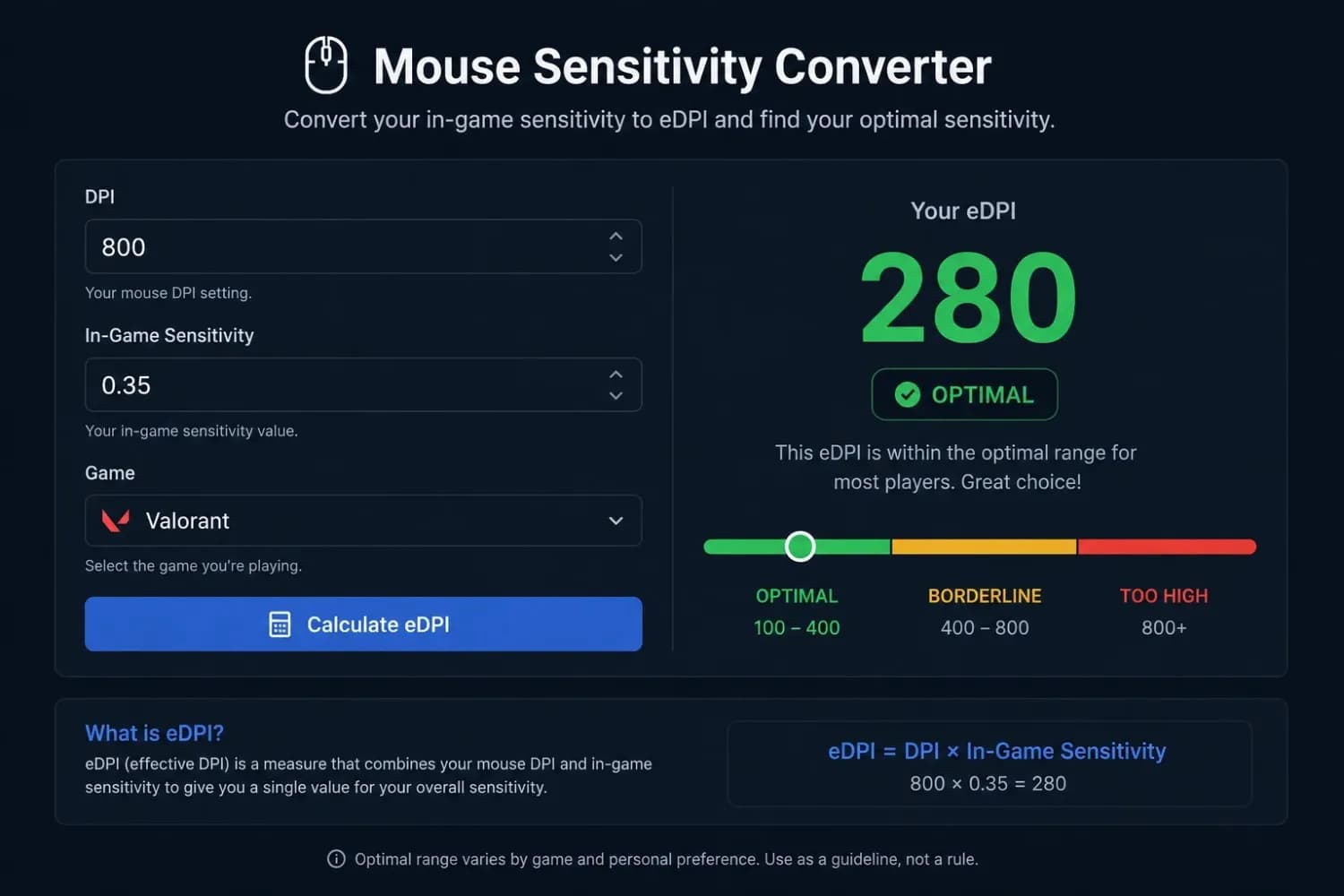
How to Use the Mouse Sensitivity Analyzer
The whole process takes under a minute. Here's what to do.
Step 1: Enter Your DPI
Find your DPI in your mouse software. Logitech G Hub, Razer Synapse, SteelSeries GG, and Corsair iCUE all show your active DPI on the main device screen. Type it into the DPI field.
One thing worth knowing before you proceed: the number in your mouse software is the firmware target, not necessarily what your sensor is delivering. Hardware variance, mouse pad friction, and firmware rounding can push your real output 5–10% away from the configured value. If precision matters, measure your actual DPI using the DPI Analyzer first. Use the measured figure in this tool for a result that reflects real hardware behaviour, not a manufacturer's estimate. See how accurate a DPI analyzer really is for more on why measured and configured DPI can diverge.
Step 2: Add Your In-Game Sensitivity
Open your game's settings menu and note the sensitivity value. In Valorant, this is typically a number between 0.2 and 0.8. In CS2, it's usually between 1.0 and 2.5. In Apex and Overwatch, the scales look different; enter whatever your current setting is. The tool handles the conversion.
Step 3: Choose Your Game Type
Select your primary game type from the dropdown: FPS, MOBA, or RTS. This is what allows the tool to give you a contextual verdict rather than a raw number. An eDPI of 1,200 means something completely different in an FPS game versus an RTS; the game type selector is what makes the recommendation accurate.
Step 4: Review Your eDPI and Genre Fit
The tool calculates your eDPI and compares it against the typical competitive range for your chosen game type. You'll see a clear verdict, optimal, borderline, or high, and a specific direction on what to adjust. If your eDPI is too high for your genre, the tool tells you to lower it. If it's within range, it confirms you're in the right window.
Run the analysis whenever you change your DPI or sensitivity. A setting change that felt right in the moment can still push your eDPI outside the competitive band without you realising it.
What Is a Mouse Sensitivity Analyzer?
A mouse sensitivity analyzer takes two numbers, your hardware DPI and your in-game sensitivity, and combines them into a single figure called eDPI (Effective DPI). It then tells you whether that figure is appropriate for the way you play.
Here's why that matters. A DPI setting on its own doesn't tell you how fast your crosshair moves. Neither does an in-game sensitivity number. What actually controls your aim speed is the relationship between the two. The mouse sensitivity analyzer calculates that relationship and compares it against known competitive benchmarks for your game type.
The technically accurate formula is simple: eDPI = DPI × In-Game Sensitivity. So 800 DPI × 0.35 sensitivity = 280 eDPI. And 400 DPI × 0.70 sensitivity also = 280 eDPI. Different hardware, same feel. The analyzer makes this visible, so you stop guessing.
Unlike a basic eDPI calculator that only outputs a number, a sensitivity analyzer goes further. It matches your eDPI against genre-specific ranges and tells you whether your current setup is optimal, borderline, or likely holding back your precision. That context is what turns a number into something you can actually act on.
What eDPI Should I Use? Recommended Ranges by Game Type
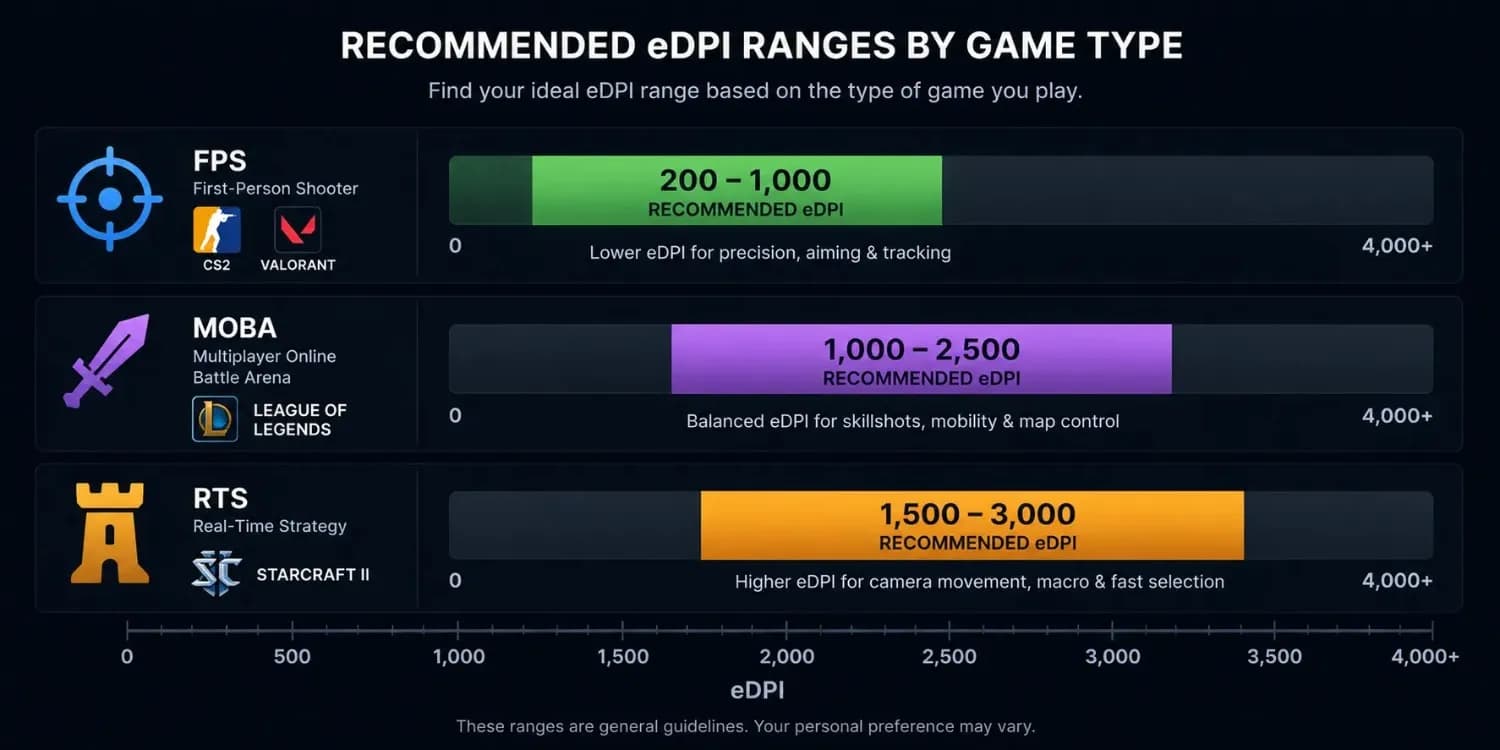
There's no single correct eDPI for every player. The right range depends on your game type, your aiming style, and how much physical movement you're comfortable with. That said, there are well-established bands where competitive players in each genre consistently land.
| Game Type | Typical eDPI Range | Why It Works | Notes |
|---|---|---|---|
| FPS, CS2, Valorant | 200 – 1,000 | Precision at range, pixel-level aim, counter-strafing | Valorant pros average 275–320. CS2 pros cluster around 600–900. Above 1,400 hurts micro-adjustment. |
| FPS, Apex Legends | 800 – 1,600 | Fast tracking, movement abilities, and quick rotations | Higher eDPI is accepted here; the game rewards speed over static precision. |
| FPS, Call of Duty | 800 – 2,000 | Mixed close-range and mid-range combat | Varies widely by mode (Warzone vs multiplayer). Generally higher than CS2/Valorant ranges. |
| MOBA, League, Dota 2 | 1,000 – 2,500 | Map clicks, unit commands, quick camera panning | Precision per click matters less here than speed across the screen. |
| RTS, StarCraft, AoE | 1,500 – 3,000 | Multi-unit selection, map navigation, fast commands | High eDPI reduces physical fatigue during rapid clicking sessions. |
| Overwatch 2 | 1,000 – 2,500+ | Fast character movement, hero swapping, 180° recovery | OW2 engine scales input differently, eDPI looks high vs FPS standards, but plays normally. |
Important:
Best eDPI for FPS Games: Valorant and CS2
Competitive FPS games reward low eDPI more than almost any other genre. Valorant pros consistently sit between 190 and 450 eDPI, with the professional average around 275–320. CS2 pros run slightly higher, typically 600–1,000. If you move between the two, our Valorant to CS2 sensitivity conversion guide keeps that feel consistent.
The reason is straightforward. In tactical FPS games, rounds are decided by first-bullet accuracy at medium and long range. A high eDPI makes the small micro-corrections needed to land those shots exponentially harder. Once your eDPI climbs above 1,400 in a tactical shooter, you're fighting your own hardware on every precision shot.
Players who spend months stuck at a rank without mechanical improvement are often running eDPI well above 2,000. The aim training hours don't go to waste, but the hardware was limiting the ceiling the whole time. Lowering eDPI into the competitive range and giving it two weeks of practice typically produces a noticeable improvement in shot consistency.
Best eDPI for MOBA Games
MOBA players don't aim the way FPS players do. The click targets are larger, the camera movements are wider, and the priority is speed and coverage rather than pixel-perfect precision. That allows eDPI to sit higher without performance consequences.
For League of Legends and Dota 2, most competitive players land between 1,000 and 2,500 eDPI. Above that, camera dragging becomes imprecise, and last-hitting in tight situations gets harder. Below 800, the cursor movement starts feeling laboured for quick command inputs.
Best eDPI for RTS Games
RTS games involve the most repetitive clicking of any genre. A StarCraft player can average 200–300 APM (actions per minute) in a serious match, meaning the mouse covers enormous physical distances over time. Higher eDPI reduces that physical load significantly.
The typical competitive range for RTS sits between 1,500 and 3,000 eDPI. The priority is reducing wrist fatigue over long sessions while maintaining enough precision for multi-unit selection and build order clicks. This is one of the only genres where very high eDPI is not just acceptable, it's actively practical.
Mouse Sensitivity Analyzer for FPS Games
When players look for a mouse sensitivity analyzer for FPS games, the core question is always the same: Is my eDPI inside the competitive range for my game? This tool answers that directly.
Here's how to use the analyzer specifically for FPS play. Set your game type to FPS. Enter your real DPI, the measured output from a physical test, not the configured value in software. Enter your in-game sensitivity exactly as it appears in your game settings. Generate the result.
If your eDPI is in the green band, your hardware is calibrated for competitive play. If it's in the amber or red zone, the tool tells you the direction to adjust. From there, use the sensitivity converter to carry the adjusted feel across every FPS title you play without losing your muscle memory.
One thing that surprises many players: two people with identical eDPI in the same game can still feel different aim speeds if Windows Enhanced Pointer Precision is enabled on one machine. That setting applies a variable speed multiplier to mouse movement, meaning the same eDPI produces a different real feel depending on how fast you physically move your hand. Always disable it before running any sensitivity analysis.
Why Your DPI Setting Alone Doesn't Tell the Full Story
This is one of the most common misunderstandings in gaming hardware discussions. Players see a pro using 400 DPI, copy that setting, and immediately feel like their aim has degraded. The DPI number they copied meant nothing without also copying the in-game sensitivity that goes with it. See our DPI recommendations by use casefor sensible starting points instead of copying a pro's raw number.
| Setting | Where It Lives | What It Controls | Can You Change Mid-Game? |
|---|---|---|---|
| Mouse DPI | Mouse hardware/driver software | Pixels the cursor moves per inch of physical mouse movement | No, requires mouse software or DPI button |
| In-Game Sensitivity | Game settings menu | A multiplier applied on top of DPI by the game engine | Yes, from the settings menu anytime |
| eDPI | Calculated value | Your real-world aim speed is the combined output of both settings | N/A, changes whenever either value changes |
| CM/360 | Calculated from eDPI + engine | Physical cm of mouse movement for one full in-game rotation | N/A, universal measurement across all games |
The takeaway is that DPI and in-game sensitivity are not independent settings; they're two parts of the same equation. This mouse sensitivity analyzer calculates the output of that equation and tells you whether it's configured correctly for your game type. That's information you can't get from looking at either number alone.
One common misconception worth addressing directly: you cannot change your mouse DPI through Windows Display Settings. Adjusting Scale and Layout in Windows changes the size of your desktop UI elements; it does not affect whatsoever on mouse sensitivity. To change the actual DPI, you need your mouse's own software or the physical DPI button on the device. If you're unsure what DPI your mouse is really outputting, run a physical measurement with the DPI Analyzer tool before using this analyzer.
Genre Fit Analysis: Why the Same eDPI Feels Different Across Games
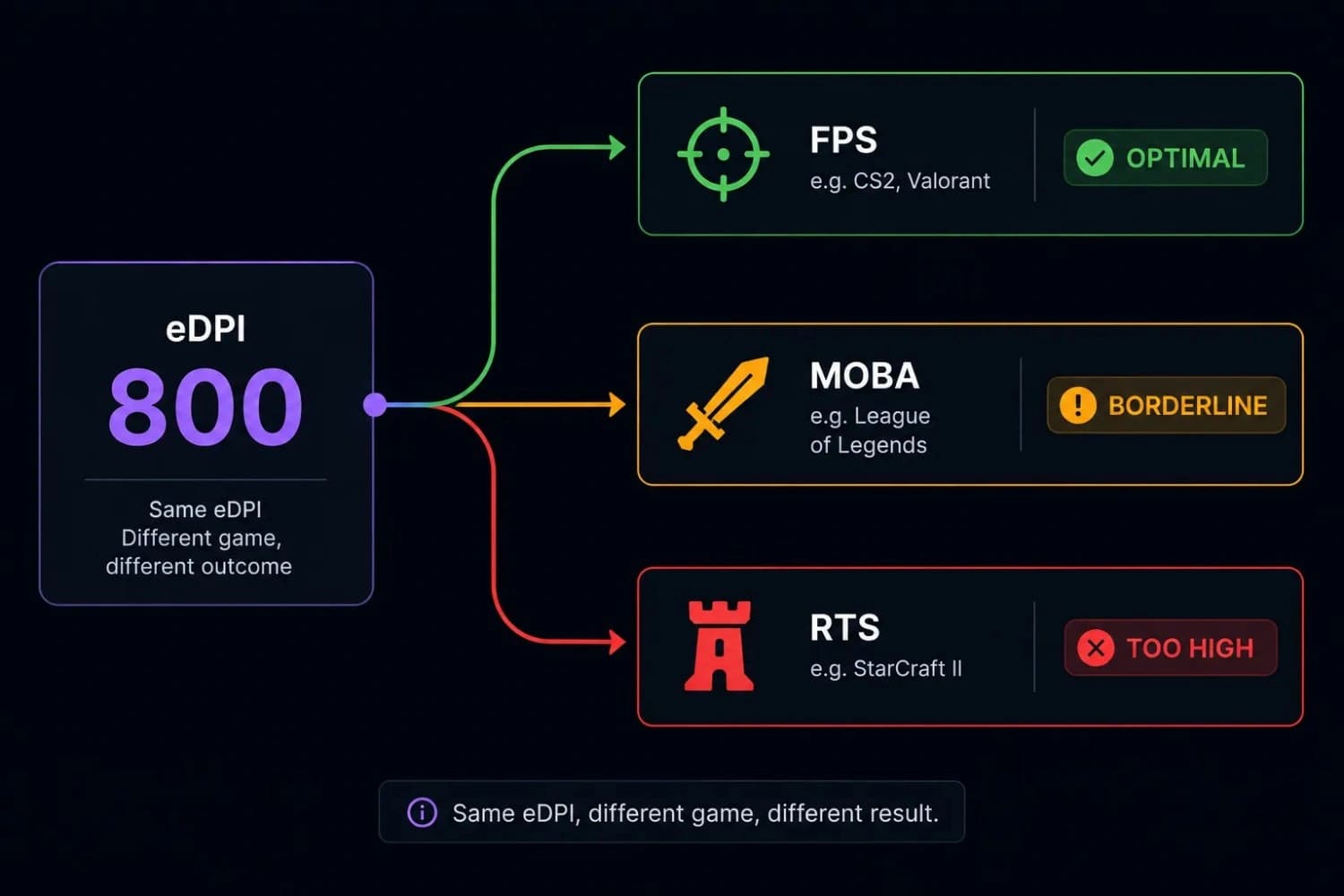
Here's something most sensitivity guides skip entirely. An eDPI of 800 is excellent in CS2. It's workable in Apex. It would feel excruciatingly slow in Overwatch 2. And in a MOBA like League of Legends, it would make simple camera panning feel like dragging through wet concrete.
The reason is game engine scaling. Every game applies its own internal multiplier to mouse input. Overwatch 2's engine processes movement on a completely different scale from CS2's Source engine. That's why eDPI comparisons only make sense within the same title, not across different ones.
This is the core gap most competitors miss. They present eDPI as a universal number you can compare across all games. It isn't. The number you need for cross-game comparison is CM/360, the physical centimetres your mouse needs to travel for one full 360-degree rotation in-game. That figure is consistent across every game, regardless of engine.
When this tool gives you a genre fit verdict, it's doing the comparison correctly, evaluating your eDPI against the scale of your specific game type, not against a universal benchmark that doesn't exist. For cross-game conversions, use the mouse sensitivity converter, which applies accurate engine-specific yaw values rather than simple division.
Common Signs Your Mouse Sensitivity Is Off
Before running the analyzer, it helps to know what an incorrectly calibrated sensitivity actually feels like in practice. These symptoms show up in both casual and competitive play.
Signs Your eDPI Is Too High
- Your crosshair consistently overshoots targets at medium to long range
- Small adjustments to land a headshot feel unreliable; you overshoot left or right, even when you see the target clearly
- Tracking fast-moving targets feels fine, but hitting stationary ones at range is harder
- Your aim feels inconsistent between sessions, even when nothing has changed in your setup
- You rely on spraying at close range because precise first-shot placement feels unpredictable
Signs Your eDPI Is Too Low
- 180-degree turns feel sluggish and require your mouse to leave the pad
- Tracking enemies on fast lateral movement feels impossible; you can't keep up
- Your wrist fatigues quickly from the large physical movements required
- In MOBAs or RTS games, covering the map quickly feels physically tiring
- You frequently run out of mousepad space during intense sequences
If two or more of the high-eDPI signs match your experience, run this analyzer and check your result against the FPS range. If two or more of the low-eDPI signs apply, the problem is usually genre mismatch, using an FPS-optimised sensitivity for a game that benefits from faster cursor movement. Before you change anything, it's worth ruling out a faulty switch with the double click test, since misfiring clicks can feel a lot like a sensitivity problem.
How This Analyzer Compares to Other Sensitivity Tools
| Tool | Best For | What It Gives You |
|---|---|---|
| Mouse Sensitivity Analyzer (This Tool) | Quick eDPI analysis + genre fit verdict | eDPI, genre comparison, adjustment direction |
| DPI Analyzer | Measuring real hardware output | Actual sensor DPI from physical movement test |
| eDPI Calculator | Calculating effective DPI from known values | Single eDPI number, no genre context |
| Sensitivity Converter | Carrying the aim across different games | Converted sensitivity for the target game using accurate yaw values |
| Mouse-Sensitivity.com | Advanced cross-game conversion | Detailed conversion using CM/360 as anchor |
| Aim Lab | Testing and training aim mechanics | Aim performance data, task-based training |
The key difference between this analyzer and a basic eDPI calculator is the genre context. A calculator outputs a number. An analyzer tells you what that number means for your game. Both are useful, but for players trying to diagnose why their aim feels off, the genre fit verdict is more immediately actionable.
For players who want to go deeper after running the analysis, the eDPI calculator provides game-specific eDPI ranges with worked examples, and the sensitivity converter handles the maths for carrying your verified feel into any new title you pick up.
Building a Consistent Mouse Profile
The goal of running a sensitivity analysis isn't to find one perfect number. It's to build a stable mouse profile, a combination of hardware DPI, in-game sensitivity, and verified eDPI that you can reproduce exactly on any machine and carry into any game without losing your feel.
The process has a natural order. First, measure your real hardware DPI using a physical test. Second, use this analyzer to calculate and evaluate your eDPI against the right genre benchmark. Third, if the result is in the optimal range, note down your CM/360 as your universal reference. Fourth, use the sensitivity converter whenever you move to a new game so your muscle memory carries across accurately. If you ever need to adjust your hardware DPI without breaking that profile, see how to change DPI on a mouse first.
Players who skip the measurement step and trust their configured DPI are building their profile on an unverified number. If that number drifts even 5–8% from reality, which is common due to sensor variance and mouse pad friction, every downstream calculation in their setup is off by the same margin. Small over time, but real enough to produce aim inconsistency that practice alone won't fix.
If you haven't measured your real DPI yet, start there. The DPI Analyzer measures your actual sensor output using a ruler and a browser, no software, no downloads, under sixty seconds. Use the measured figure as your input here for an analysis that reflects what your hardware is actually doing.
Wrist Aiming vs Arm Aiming: How It Changes Your Ideal eDPI
Your aiming style is one of the most important variables that most sensitivity guides ignore entirely. Whether you aim primarily from your wrist or your arm changes what eDPI range will feel natural and produce consistent results.
Wrist aimers make most adjustments with small wrist movements. The range of motion is limited, which means very low eDPI requires uncomfortably large physical movements for basic crosshair placement. Wrist aimers typically perform best in the 800–1,600 eDPI range for FPS games, where the required physical movement matches their natural mechanics.
Arm aimers drive movement from the elbow and shoulder, using the full length of the mousepad. This style handles very low eDPI well; some CS2 pros aim below 500 eDPI, because the larger range of motion gives fine-grained control over individual pixels. It requires a large pad (400mm or wider) and a clean desk setup.
Most players never consciously choose their style. They pick whatever feels natural when they start, and it sticks. If you've been trying to drop your eDPI to match a pro and it's never felt right despite weeks of practice, check whether you're a natural wrist aimer. Forcing arm-aimer eDPI onto wrist mechanics creates a mismatch that no amount of practice can fully resolve.
Conclusion
Your mouse sensitivity is the foundation on which everything else in your setup is built. Aim trainers, crosshair placement guides, and game sense all compound on top of a calibrated sensitivity. If that foundation is off, the ceiling for everything else drops, often without the player ever connecting the symptom to the cause.
This analyzer gives you a clear view of where your current setup stands. Not a raw number to copy from a pro. Not a generic recommendation that ignores your game type. A specific, contextual read on whether your hardware and in-game settings are working together the way they should.
Run the analysis. Check your genre fit. If the result suggests adjusting, use the sensitivity converterto carry the corrected feel into every game you play. And if you've never verified your hardware DPI, start with the DPI Analyzer; the rest of the process only works if that first number is accurate.
Related Tools and Guides
- eDPI CalculatorMultiply DPI by in-game sensitivity and see where your eDPI sits against the competitive range for your game.
- Mouse Sensitivity ConverterCarry the exact same aim feel from one game to another using cm/360 and engine-specific yaw values.
- DPI Recommendations for Every ScreenThe right DPI for every screen size and resolution — from 1080p to 4K and multi-monitor setups, with pro references.
- Valorant to CS2 Sensitivity ConversionThe exact conversion formula to carry your aim from Valorant to CS2 — and the classic mistakes that wreck your muscle memory.
Carry your aim feel into every game
Open the Sensitivity ConverterFrequently Asked Questions
It's a tool that takes your hardware DPI and in-game sensitivity, calculates your eDPI, and evaluates it against competitive benchmarks for your game type. Instead of giving you a raw number, it tells you whether your current setup is calibrated correctly for the way you play, and what to change if it isn't.
Yes. It's completely free to use with no account, no subscription, and nothing to download. Open the page, enter your numbers, and get your result instantly.
DPI is a hardware setting that controls how many pixels your cursor moves per physical inch of mouse movement. eDPI (Effective DPI) is your DPI multiplied by your in-game sensitivity. eDPI is the number that describes your actual aim speed, because neither DPI nor sensitivity alone tells you how fast your crosshair moves.
Not directly, no. Different game engines scale mouse input differently, so an eDPI of 800 in CS2 and an eDPI of 800 in Overwatch 2 produce completely different experiences. To compare sensitivity across different titles, you need CM/360, the physical centimetres required for one full 360-degree rotation, which stays consistent regardless of engine.
Three likely causes. First, Windows Enhanced Pointer Precision may be enabled, which applies a variable speed multiplier that makes any sensitivity calculation unreliable. Disable it before testing. Second, your real hardware DPI may differ from the configured value; measure it with the DPI Analyzer for an accurate baseline. Third, muscle memory needs time to adjust; give any sensitivity change at least a full week of regular play before judging it.
CM/360 is the physical distance your mouse needs to travel to complete one full 360-degree rotation in-game. It's the universal sensitivity reference used by competitive players precisely because it works the same way across all games and DPI settings. You don't need to calculate it manually; the sensitivity converter outputs it automatically alongside the converted sensitivity value.
Yes. The tool includes genre-specific benchmarks for FPS, MOBA, and RTS games. Each genre has different optimal eDPI ranges based on how the game handles mouse input and what kind of precision the gameplay requires. Select your game type in the dropdown and the verdict will be calibrated accordingly.
There's no universal answer; it depends on your game type and aiming style. FPS players typically use 400–1,600 DPI paired with a low in-game sensitivity. MOBA and RTS players often use 800–1,600 DPI with a moderate sensitivity. What matters is the resulting eDPI, not the DPI figure in isolation. Use this analyzer to check whether your combined settings land in the right range for your genre.
You can run separate analyses for each game. Enter your DPI once, then adjust the in-game sensitivity to match each title and switch the game type selector accordingly. Because the eDPI formula and the genre benchmarks stay consistent, you'll get an accurate verdict for each game individually. If you want your feel to be the same across all three, use the sensitivity converter to match your CM/360 from your primary game.